


Selling via Facebook: detailed instructions from Torgsoft

Facebook — is a popular platform for selling goods and services, which has been leading among other social networks for more than 14 years.
According to the latest data published by the parent company Meta, as of the end of 2023, the number of Facebook users worldwide reached 3.07 billion. In 2024, independent analysts estimate the number of users at about 2.83 billion. The total number of users is expected to grow, and by 2027 it may reach 3.11 billion people.
And according to the marketing agency NapoleonCat, in 2024 the number of Facebook users in Ukraine was approximately 12.8 million, which is more than half of the country’s population. Among users, women account for 58.7%, and men — 41.3% of the total.
The article covers in detail: how to create a company business page, how to open a shop on Facebook, and how to properly launch an advertising campaign to attract new and retain existing customers.
How to create a business page on Facebook?
A Facebook business page — is a public account for companies, brands, and businesses that want to present their goods or services to users of this social network.
A business account allows companies to interact with the audience, promote products, publish content, and use analytics tools.
Capabilities of a business profile on Facebook
-
Professional tools: a business page on Facebook provides access to Facebook Ads tools, which allow you to create and configure advertising campaigns for different target audiences.
-
Statistics and analytics: companies can view data on reach, engagement, demographic, and other metrics of their clients, helping them better understand which posts are more effective.
-
Integration with other platforms: a business page can be linked with Instagram, Messenger, and other platforms for marketing management.
-
Customer communication: you can reply to messages, requests, and comments from users, which helps improve customer service.
How to create a business account on Facebook? Main steps
Create a personal profile on Facebook if you don’t have one yet. If you are a non-public person and do not intend to run a personal page, we recommend filling it in with minimal but valid information — real surname and name, date of birth, and a photo. Facebook often checks business pages and may ask their owners to verify their identity — by sending a passport photo.
-
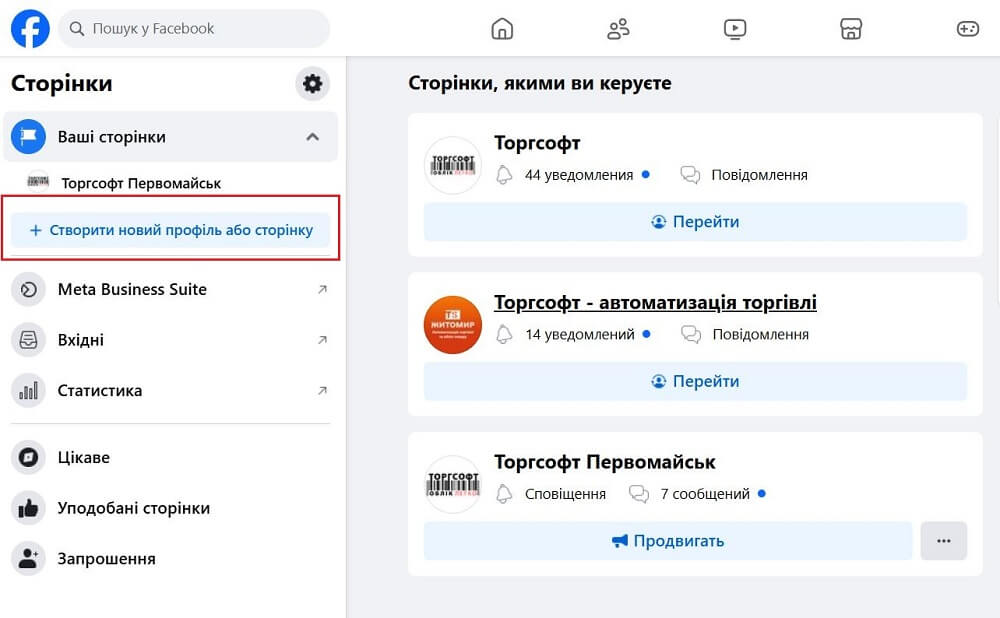
Log in to your personal Facebook page and in the top right corner under «Menu» select the «Page» tab. Click «Create a new profile or page».
-
Choose the page type «Public profile».
-
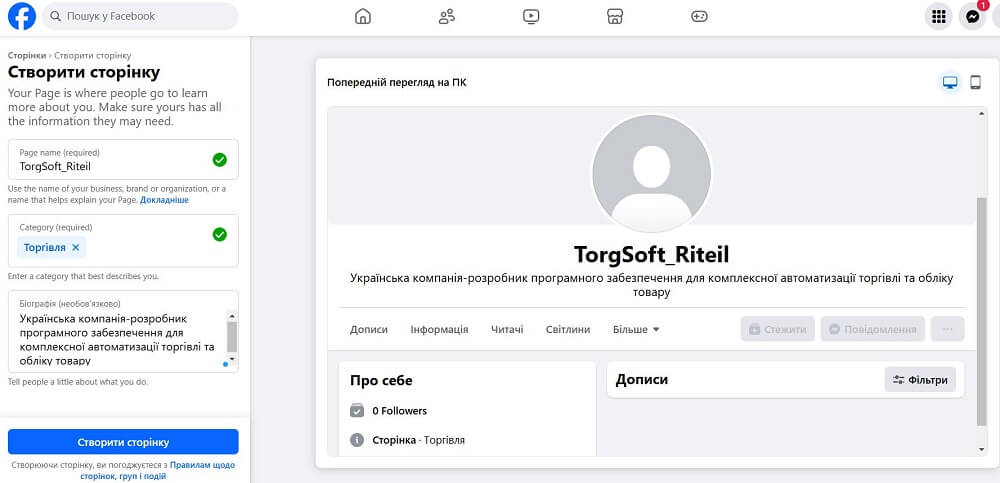
Create a page name and select a category that best matches your area of activity. Add a Page description and click Create.
-
Add information — contacts, location, and working hours.
-
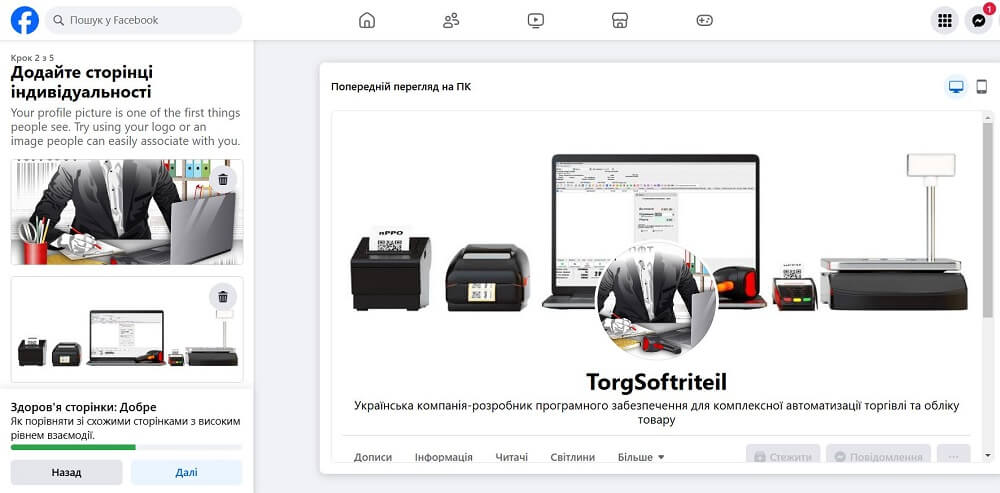
Customize the appearance of your page by adding a cover photo and profile picture. Edit the action button.
-
Invite friends to «Like» your page.

Additional information about the page
The more data you fill in about your store, the easier it will be to find your store in the search on Facebook and Google.
Select the main keywords that best match your business and add them to:
-
the description of your page, the first 75 words,
-
the posts you publish,
-
the descriptions of photos and videos you upload.
Also don’t forget to add in the store information settings on Facebook:
-
links to your website, Instagram, Telegram, Prom.ua, etc.;
-
store opening hours, price range, services,
-
legal information, etc.
Store page address on Facebook
It is important to change the page address so that you can be easily found on the internet.
The username is used in the web address of your profile or Page (example: facebook.com/username).
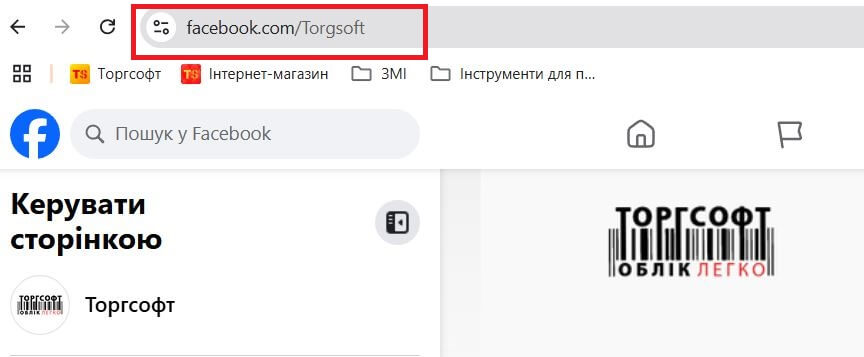
To change the username for the Page, log into your Facebook business account from a computer. You must be the page administrator.
-
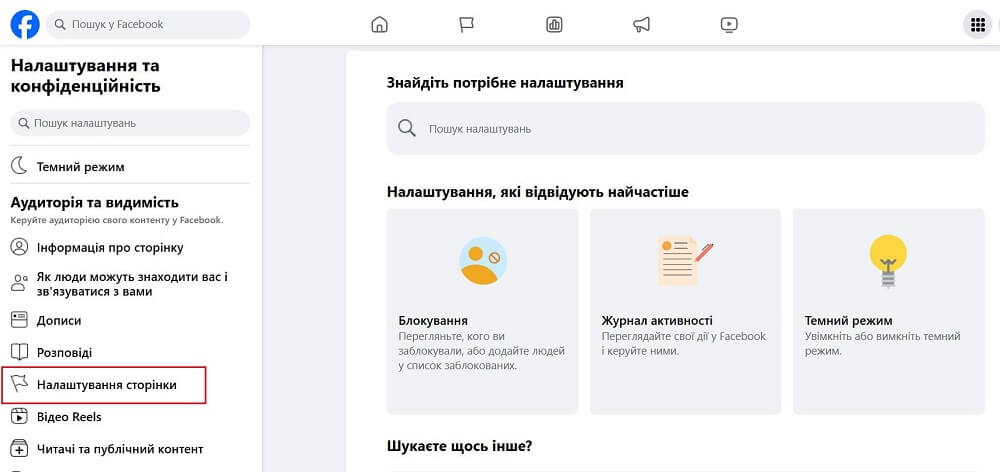
In the menu to the left of the News Feed, go to the Page «Settings».
-
On the left, click the «Page Settings» tab.
-
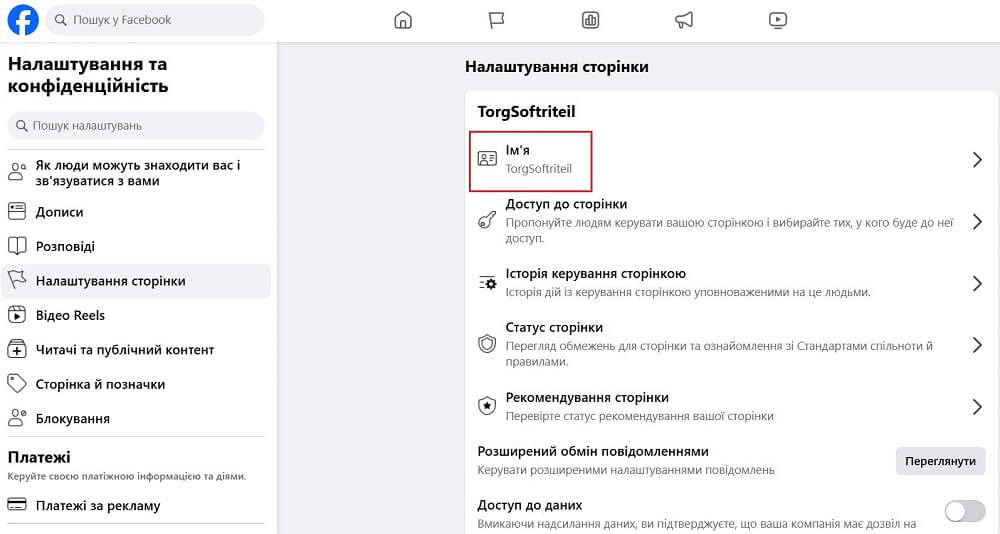
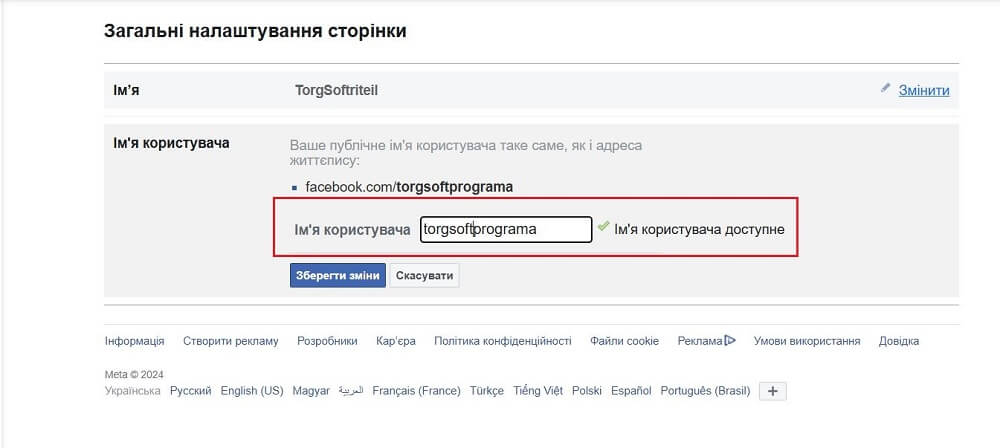
Select the «Page Name» tab and then click «Edit» next to «Username».
-
Enter the desired username by which your clients can find you on Facebook.
-
If this name is not taken and meets Facebook’s requirements — it will be linked to your page.
Also in this menu, you can change the name (title) of the business profile on Facebook.
Adding an action button
A Facebook business account offers companies many ways to interact with customers. To add a quick way to contact you, click on the «Add Action Button» tab on the home page.

You can choose an option that will encourage people to learn more about your store by clicking on buttons like: «Sign Up», «Go to Store», etc.
Or contact you directly through available options: «Call», «Send Message».
You can also add a link on the action button to your website, a specific page with prices or assortment, to a video, or a mobile app.
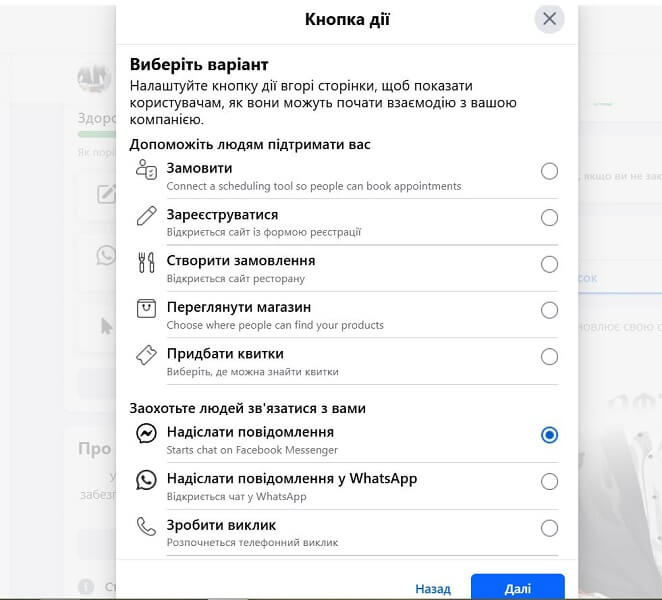
If you chose the option «Send Message», Facebook will redirect you to third-party services. You can connect the messenger your company usually uses to receive customer orders and click «Save».

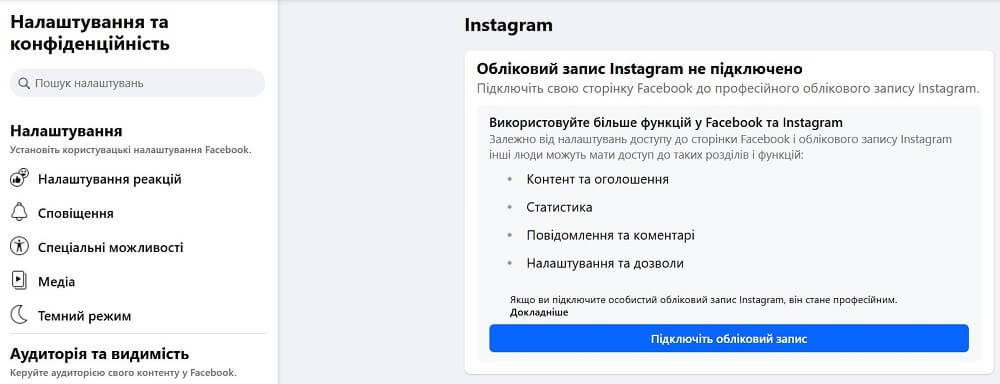
Also, if you have a business account on Instagram, you can link it to your Facebook page. To do this, on the left panel select the Boost Instagram post tab and connect the pages together.
Page Design
The page design — is your store’s business card. The cover photo — is a great way to inform subscribers about news, promotions, and other special offers in the company.
The cover occupies about one-third of the main screen and is the central element of the business account. It should be visually attractive, harmonize with the profile picture, match the brand’s corporate style, and maximally highlight the company’s unique or seasonal offer.

Use the right color combinations and make sure to meet the technical requirements of the social network. For the background to display well on high-resolution screens, upload an image larger than 8x320 px. Adapt it for the mobile version. The text should take up no more than 20% of the background. It’s better to update the image periodically.

How to pin a welcome post at the top of the page?
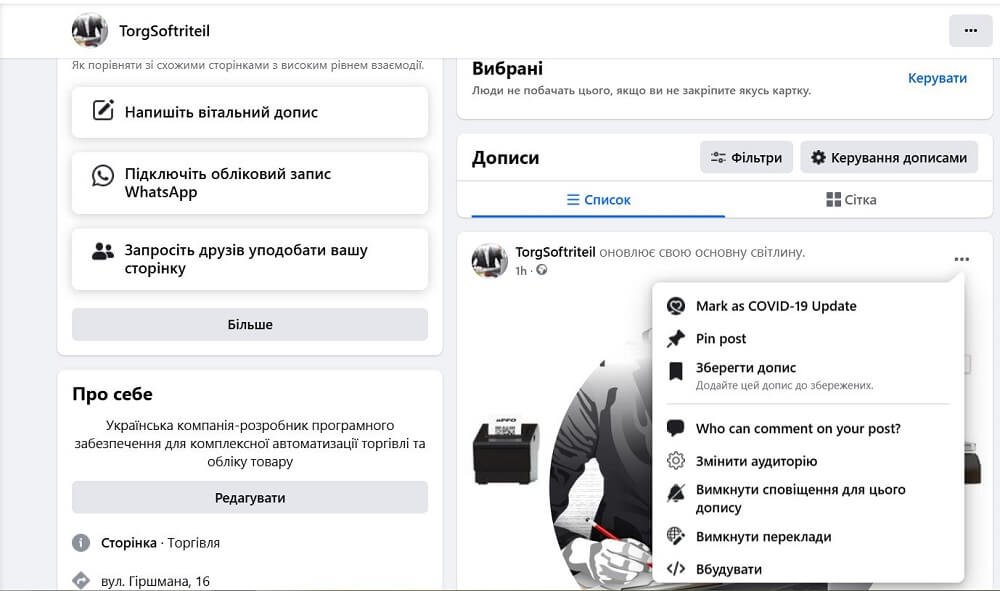
On the home page of your business profile, you can pin an introduction post or a post with a promo code for current discounts in the company.
To do this, click on the post you want to pin (after publishing it), open the drop-down menu in the upper right corner, and select «Pin post».
How to create a store in Facebook Marketplace?
-
Go to your business page settings and open the Create Store page.
-
Choose the way you want to sell products: directly on the Facebook store page or in Instagram, by redirecting to your main website, or through Messenger/WhatsApp.
-
Specify your business page that will be attached to the online market.
-
Select a catalog for the store. Facebook will automatically create a catalog for you if you don’t have one.
-
Choose the method of order delivery and provide return processing information.
-
Review the store information, read the Seller Agreement, and click Finish Setup.
-
Ensure compliance with Facebook’s policy by making sure your products do not violate its rules.
After Facebook creates a catalog for you, you can edit it yourself. Add products with detailed descriptions, prices, and high-quality images.
Reference: image and video sizes for Facebook
Cover size — 820x312 pixels for desktop, 640x360 px for smartphones.
Profile photo size — at least 170x170.
Product photos on Facebook Marketplace — minimum 1080x1080 px.
Facebook News Feed — recommended size — 1080x1350 px.
Facebook Stories — recommended size — 1080x1920 px.
Promotion and Marketing
Do you want to quickly promote your products on Facebook? Facebook offers many options for effective interaction between a company and its audience.
-
Post interesting content regularly. Consistent activity helps keep followers’ attention and attracts new ones. Diverse content, including articles, videos, polls, and infographics, enriches your page and retains the audience. Use visually appealing materials, as posts with graphics or videos get more engagement than text-only posts.
-
Run contests and promotions. This is a classic way to attract new followers and increase the activity of the existing audience. Giveaways, in particular, encourage users to share your content and engage with your brand more than regular promotions where customers are only interested in discounts. An important condition — offer a truly interesting prize so that users are motivated to do what you ask them to.
-
Collaborate with bloggers and influencers. Partnerships with opinion leaders help expand reach and build trust in your brand. Choose bloggers whose audience matches your target group and organize joint activities such as reviews, contests, or product launches.
-
Promote events. Announce events, flash mobs, giveaways, or other marketing campaigns on your business page to attract more people to your activities.
-
Share customer reviews and stories. Regularly publish reviews and stories from your customers; this helps strengthen trust in your brand. Customers trust real feedback more than advertising materials. Positive reviews and «live» customer stories create a sense of authenticity among the audience.
They show that people actively use the brand’s products or services and are satisfied with them. This reduces doubts of potential buyers before purchasing. It also encourages audience engagement: customers can leave comments, share their own reviews, or even tag friends, increasing the organic reach of the post.
Publishing user-generated content helps build a community around the product and additionally increases the brand’s visibility.
How to create an ad on Facebook?
Unlike posting, which is a conditionally free sales tool, advertising campaigns require a certain budget. The purpose of such promotion — to increase the reach of posts and attract a new audience.
To correctly launch an advertising campaign, follow these steps:
-
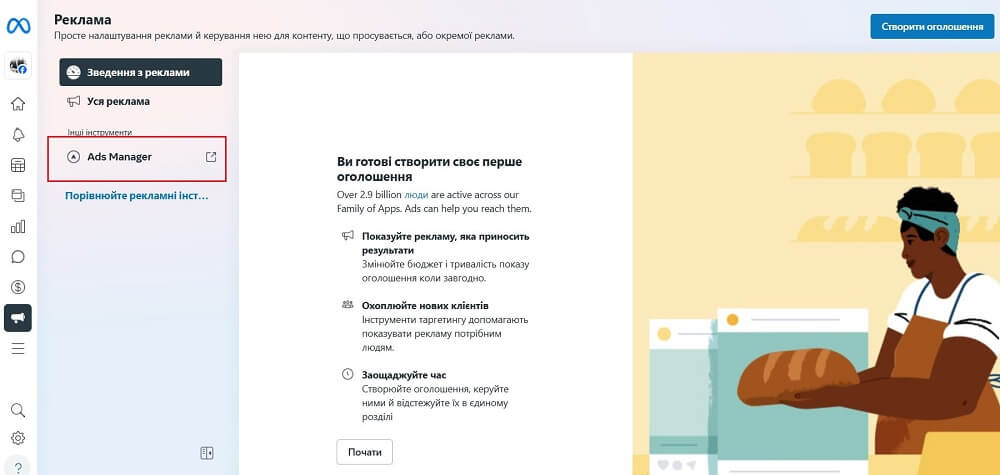
Go to the Meta Business Suite tab on the left panel of your business account.
-
Select Ads Manager. You will enter the advertising cabinet of your Facebook account.
-
In the advertising account settings, under the Campaigns tab, click the «Create» button.
-
Choose the goal of the ad (for example, reach or increased clicks, conversions).
-
Set up the target audience. You can create a new audience by specifying the necessary targeting parameters or show ads to existing followers. A new audience can be added through the «Boost Post» — «Audiences» — «Create Audience» tab. Facebook’s advertising algorithms are constantly being improved, and AI can intelligently select audiences based on analytics from your website.
-
Attach a button to the ad. Facebook allows you to add active buttons with target actions. To do this, in the «Boost Post» menu, set the necessary button parameters.
-
Set the budget for the advertising campaign. Set the duration of the ad. You will immediately see the cost for the selected display period and the estimated daily reach of users.
-
Use Facebook’s analytics tools to track the effectiveness of your store and ads.
An important step in launching an advertising campaign is setting up pixels before running ads. Pixels allow you to measure the effectiveness of your ad and analyze people’s actions on the website. You can start ad measurement both in the Ads Manager block and in the ad settings.
Customer support
For better promotion and growth of your store, ensure fast and efficient customer service through Facebook Messenger. It is important to reply to comments, ask questions, and encourage followers to actively discuss. Monitor customer feedback and respond quickly to problems.
These are not all the recommendations on how to create a business page on Facebook and successfully start a business. However, by using these steps, you can successfully launch and effectively manage your online store on Facebook, easily attract new followers, and turn them into loyal customers.